
Figma Prototyping Best Practices for Product Teams
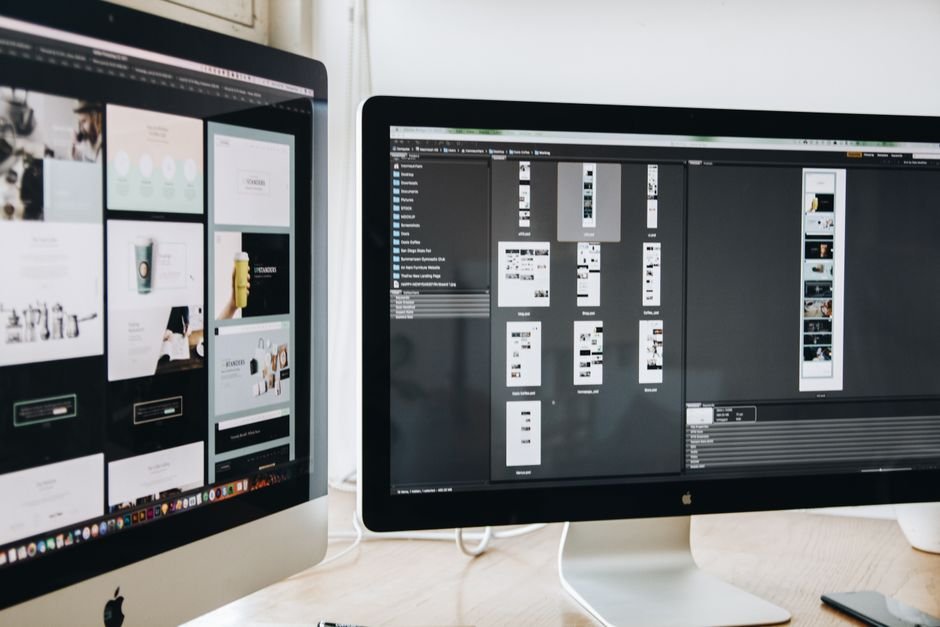
A good prototype answers the questions a static mockup cannot: does this flow make sense, does this interaction feel right, and will users actually find the button? Figma prototyping lets product teams answer those questions in days, inside the same tool where the designs already live, and share the result with anyone through a link.
Yet many prototypes become tangled webs of hundreds of connections that break whenever a screen changes. This guide collects the practices our design team uses to build prototypes that are fast to create, easy to maintain and convincing in user tests and stakeholder reviews.
What Figma Prototyping Can Do in 2026
Figma prototypes can now simulate most of the behavior of a real app, including state, conditional logic and realistic animation, without code. The key capabilities, documented in the Figma Help Center, are:
| Feature | What it does | Best used for |
|---|---|---|
| Connections and triggers | Link frames with triggers such as on tap, on drag, while hovering, key press and after delay | Basic navigation and flows |
| Smart Animate | Animates matching layers between frames based on layer names | Realistic transitions, expanding cards, carousels |
| Interactive components | Interactions defined once inside a component’s variants | Toggles, checkboxes, tabs, buttons with states |
| Variables and conditionals | Store values and apply if/else logic in prototypes | Cart counts, form validation, logged-in states, themes |
| Overlays | Open frames on top of the current screen | Modals, bottom sheets, menus, tooltips |
| Scroll and position settings | Scrolling areas and fixed or sticky elements | Long feeds, sticky headers, fixed tab bars |
| Flows and starting points | Multiple named entry points in one file | Testing several journeys separately |
Figma has also added AI features that generate interactive prototypes from text prompts. These are useful for exploring ideas quickly, but for user testing and handoff you still need prototypes built from your real components.
Decide What the Prototype Is For
The most important Figma prototyping decision happens before you draw a single connection: what question must this prototype answer? The answer determines fidelity, scope and how much time to invest.
- Testing a flow or concept: low or mid-fidelity, covering one or two journeys end to end. Speed matters more than polish.
- Validating an interaction: a narrow, high-fidelity prototype of one pattern, such as a swipe gesture or checkout step.
- Stakeholder or investor demo: high-fidelity, scripted along a “golden path,” with realistic content.
- Developer reference: precise transitions, timings and states that developers will implement.
If you are deciding between a prototype, a proof of concept and an MVP, our guide to PoC vs prototype vs MVP explains when each is appropriate.
12 Figma Prototyping Best Practices
These practices keep prototypes maintainable as designs change and make tests more reliable.
File structure and setup
- Keep prototypes on a dedicated page. Separate exploration, final designs and prototype frames so test links never show half-finished work.
- Name frames and flows clearly, for example “Checkout / 02 Payment / Error.” Clear names make connections and Smart Animate predictable.
- Use the right device frame and test on real phones through the Figma mobile app, not only on a desktop monitor.
- Use auto layout everywhere. Screens that resize properly survive content changes and make scroll behavior realistic.
Components and interactions
- Put interactions inside components. Define hover, pressed and selected states once as interactive components; every instance then works automatically, which cuts hundreds of manual connections.
- Build from your design system. Prototypes built from shared library components update when the library does. Our article on why growing products need a design system covers the foundations.
- Use variables for state, such as items in a cart or a logged-in flag, instead of duplicating near-identical screens for every combination.
- Use overlays for modals and sheets rather than copying the background screen into new frames.
Motion and realism
- Keep animations short and consistent. Most UI transitions feel right between roughly 150 and 400 milliseconds. Reuse the same easing curves throughout, and follow platform motion guidance such as Apple’s Human Interface Guidelines.
- Use realistic content: real product names, prices, long user names and error messages. Users react differently to “Lorem ipsum.”
- Include the unhappy paths that matter: a declined card, an empty search result, a missing permission.
- Do not prototype everything. Link only what the test or demo needs, and make dead ends obvious so testers are not confused.
Testing Your Prototype With Users
A Figma prototype is most valuable when real users try it. Five participants per round usually reveal the most serious usability problems, a finding long promoted by the Nielsen Norman Group.
- Set a flow starting point for each task so participants begin in the right place.
- Hide Figma’s hotspot hints during moderated tests so you see whether users find controls on their own.
- Run moderated sessions over video call for depth, or use unmoderated testing tools that import Figma prototypes for scale.
- Record task success and where people hesitate, then iterate and retest.
For low-cost ways to recruit and run sessions, read our guide to UX research methods for startups.
Sharing and Developer Handoff
Share prototypes with view-only links and control who can comment. For stakeholders, record a short walkthrough video alongside the link so the context travels with it.
For developers, the prototype shows intent while Figma’s Dev Mode provides measurements, tokens and code hints. Annotate anything that a prototype cannot fully express, such as loading states, network errors, accessibility labels and animation specs. Check text contrast and focus order against the WCAG guidelines before handoff, not after release.
Common Figma Prototyping Mistakes
- Spaghetti connections from duplicating screens instead of using components, variables and overlays.
- Testing only on desktop, which hides problems with thumb reach, small text and keyboards.
- Over-polishing too early, so feedback focuses on visuals instead of whether the flow works.
- Prototyping interactions developers cannot build within budget. Involve an engineer when designing complex motion.
- Letting prototypes drift from the final designs after updates, so tests and handoff use outdated screens.
Prototyping is one stage of a larger workflow; see the mobile app design process from wireframe to prototype for how it fits with research, wireframes and handoff.
When to Move From Prototype to Code
Move from a Figma prototype to code once the core flows test well and the remaining questions are technical rather than about usability. Typical signals are:
- Test participants complete the key tasks without help, and new rounds reveal only minor issues.
- The open questions involve real data, performance, integrations or device hardware.
- Stakeholders have approved scope and priorities for the first release.
At that point, keep the prototype as a living reference and update it alongside the product, so future features can be tested the same way before development.
Frequently Asked Questions
Can Figma prototypes replace a coded prototype?
For most flow and usability testing, yes. Coded prototypes are still better for testing real data, performance, device sensors or complex gestures that Figma cannot simulate.
How long does it take to build a Figma prototype?
A simple click-through of existing screens can take a few hours. A high-fidelity prototype with variables, interactive components and several flows typically takes three to ten days.
Can I test Figma prototypes on a phone?
Yes. The Figma mobile app for iOS and Android lets you view and interact with prototypes on a real device, which is the best way to judge size, reach and feel.
Do developers need access to the prototype?
Yes. Developers should see the prototype to understand flows and transitions, and use Dev Mode or inspect tools for exact values.
Get a Prototype You Can Test This Month
Sigmato’s designers build Figma designs and interactive app and web prototypes that are ready for user testing, investor demos and development. Tell us what you need to validate and we will scope a prototype around it.
Sources and References
